Process to Check-In the vehicle
Goal
Check-in a vehicle for an accepted enquiry when the vehicle arrives at the garage so that the system shows the vehicle as on site.
What is Check-In?
Check-In is the action performed on an accepted enquiry when the vehicle has arrived at the location. This updates the enquiry to show that the vehicle is now on site and ready for work to begin.
When to use Check-In
- Vehicle arrives for a confirmed booking
- Workshop needs the enquiry moved from
AcceptedtoVehicle On Site
Prerequisites
- Supplier portal access with permission to update enquiries
- Enquiry already accepted for the vehicle
- Ability to open the Enquiry Details view for that enquiry
Related articles
-
Add a Booking Enquiry. [Todo link the article when available]
-
Booking Process. [Todo link the article when available]
-
Enquiry Detail View. [Todo link the article when available]
Check-in steps
Navigate to Enquiry Search
- From the left navigation, select
Enquiryor - On the dashboard, click
View Allin theAcceptedtile to view accepted enquiries

Open the enquiry
- Locate the required enquiry row
- For enquiries showing the
Acceptedstatus, click the>icon (View Enquiry) to openEnquiry XXXXX

Check-In
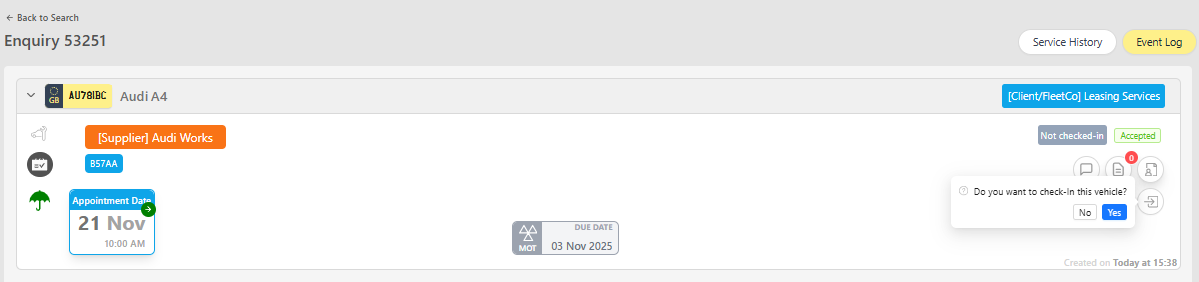
- The grey label reads Not checked-in on the right
- The icon showing an arrow entering a box is the Check In icon

- Select the Check In icon
- The confirmation prompt appears: “Do you want to check-in this vehicle?”
- Click No to cancel
- Click Yes to complete the check in
Verify the result
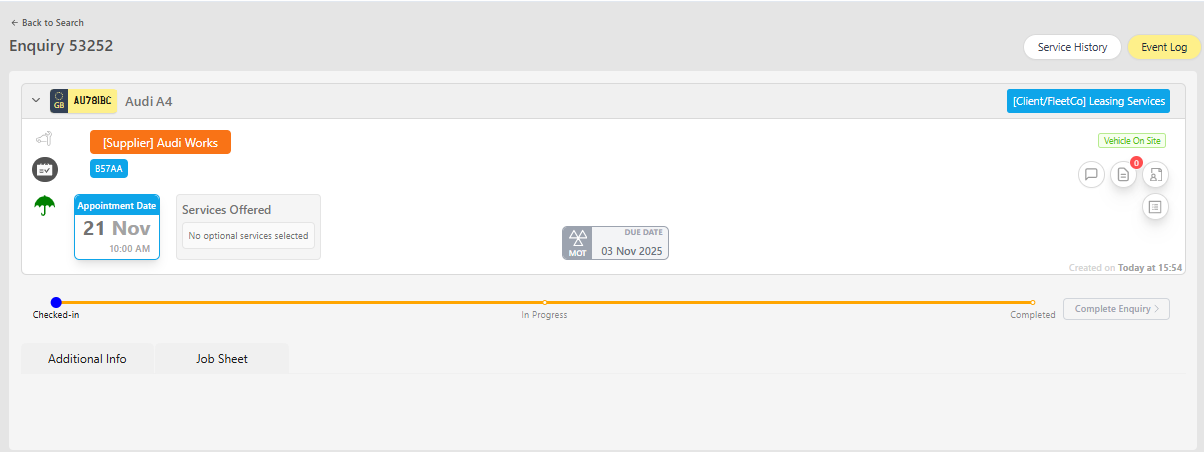
After confirming:
- The Not checked-in label disappears
- The enquiry status updates to
Vehicle On Site - The progress timeline moves to the Checked-in stage
What happens next
- Status update – enquiry progresses to
Vehicle On Site - Workshop actions – the job sheet can be prepared and work can begin
- Notifications – driver and lease users receive the status alerts on as the enquiry progresses
- Audit trail – System captures event log records of who performed the check-in
Suggested next steps
- Add or update job items
- Capture diagnostics, photos, or wear readings
- Request authorisation if extra work is discovered
Troubleshooting
| Issue | Likely cause | Resolution |
|---|---|---|
| Check In icon missing | Enquiry not in Accepted status or permissions missing | Verify enquiry status, refresh the page, confirm the role allows status updates |
Status: Accepted
Category: Protected
Authored By: Arun Kumar on November 14, 2025
Revisions